Inventory Distribution rules give you more control over how your stock is published to carsales and other marketplaces.
With this feature, you can create and manage Inventory Distribution Rules yourself, allowing you to restrict specific vehicles or groups of vehicles from being automatically published. This replaces the need to contact dealer support for most rule changes, making the process faster and more flexible.
What’s changed?
Previously:
- You had to submit a request to the carsales dealer support team to create, edit, or remove distribution rules
- Each request was then reviewed and manually implemented by our team
Now:
- Dealers can create, edit, and manage rules directly in AutoGate
- Changes take effect faster, giving you immediate control over your inventory
- You can still submit a rule request to dealer support if needed, but self-serve is the recommended approach.
What this feature allows you to do:
Control publishing criteria: Define which vehicles are restricted from auto‑publishing by setting your own criteria.
Update rules directly: Make changes to rules yourself, without needing to wait for a support request to be processed.
Adjust rules as needed: Update or refine rules as your stock levels or business requirements change.
Manage rules in one place: View and manage all automation rules within AutoGate, at a time that suits you.
How does it work?
Inventory Distribution rules restrict vehicles from being automatically published based on set criteria. These rules only apply when auto‑publishing is enabled for a destination. Ie. carsales, dealer website etc.
When auto‑publishing is enabled, vehicles added to AutoGate, are published automatically. Distribution rules then add an extra layer of control by setting conditions that determine which vehicles are allowed to go live.
You can now create more advanced Distribution Rules using a query builder-style experience. This allows you to combine multiple conditions and better control how different types of inventory items are distributed across marketplaces.
How to access your Inventory Distribution rules
- Sign into your AutoGate account
- Go to Settings located in the main menu on the left-hand side of your screen
- Then click Automations
- Note: we moved your rules from “Inventory Distribution” to “Automations” as we will add more automation capabilities in the future.
1. Create a new rule
Click on the Create a new rule button in the top right-hand corner of your screen
2. Define your rule criteria
-
Rule name
Give your new rule a clear, descriptive name so it’s easy to find and manage later on. Eg. ‘Restrict new Audi and BMW from destination X’ -
‘If’ criteria
This is where you define the details for the rule, such as listing type, odometer range, make, price, and more.
Click on Set conditions to choose the criteria this rule will apply to and take a moment to review your selections, making sure the specifications and publishing rules are set correctly.
-
‘Restrict from' destinations
Click on ‘Set destinations’ to select the destinations where this stock should not be published
Note: All of your existing publishing destinations are automatically migrated into Inventory Automations. If you would like to add publishing destinations to your account, please contact Dealer Support.
3: Review and save
- Review the rule summary to make sure everything looks correct.
- When you’re ready, click on the ‘Set conditions’ button at the bottom of the form to continue.
- To save your new rule, select ‘Review and save’. Please note: You’ll have the opportunity to do a final check before clicking ‘Save rule’ to confirm.
- If you’d like the rule to take effect straight away, simply tick the option to ‘Activate rule after saving’.
You also have the option to activate and deactivate a rule from your rules list at any time. Go to Settings > Automations to see your rules list then click the toggle under the ‘Status’ column to turn it on/off.
Activity log:
Each rule includes an Activity log, which records any changes made to the rule. The log shows what was updated, who made the change, and the date and time it occurred.
To view the Activity log for a rule:
- Go to Settings > Automations to open your Rules list.
- Find the rule you’d like to review.
- Under the Actions column, click the three dots and select Edit.
Once the rule is open, you can review or make changes as needed. Any updates you make will be recorded in the Activity log, which appears on the right‑hand side of the page.
What about my existing rules?
Any rules previously set up by the Dealer Support team will continue to work as normal.
- You can view and manage all your automation rules at any time by going to Settings > Automations.
- Find the rule you would like to update and click on the More options button (the three dots) located under the Actions column if you wish to Edit or Delete that rule.
From this list, you can also review:
- Destinations: The marketplaces in which the rule is restricting publishing
- Account: The team member who created or edited the rule
- Status: Use the toggle to quickly turn off/on a particular rule
Submitting a request for a new rule
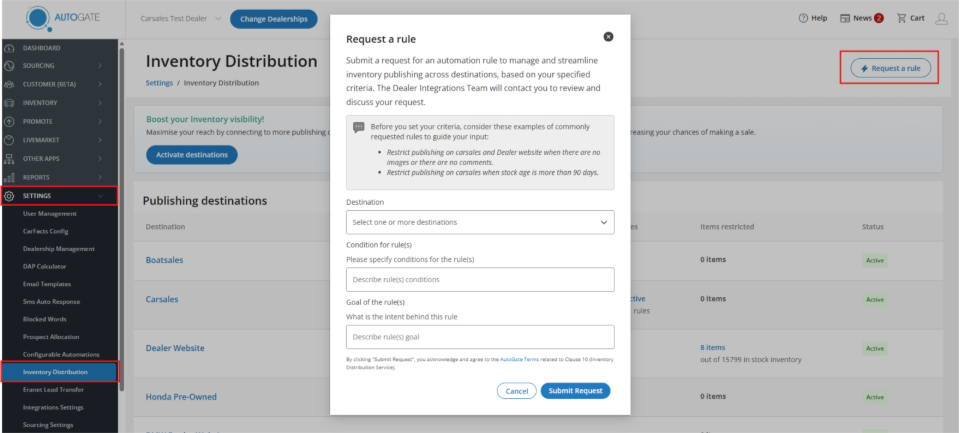
Most common inventory distribution rules can be managed by creating rules directly in AutoGate, as explained above. However, if you have more specific requirements that cannot be met using this method, you can submit a rule request.
To do this, go to Settings > Inventory Distribution and click ‘Request a rule’ in the top‑right corner. This will open a form where you can outline your requirements, including the destination, conditions, and the intended goal of the new rule.
Once your request has been submitted, our team will review the information and get in touch with you to confirm the details and ensure the rule is set up correctly.
Requesting access to Inventory Automations
Depending on your AutoGate subscription type, this feature may already be included or may need to be purchased and enabled before you can start creating automation rules.
How to check if you have access
You can check whether Inventory Automation is active on your account by visiting the AutoGate Store.
- Log into AutoGate
- Click on Store from the main menu
- Find Inventory Distribution in the list of services
- If it's included on your account type, you can enable it and start using automation rules straight away; if not, you’ll see the option to activate it at a cost.
After access is enabled
Once active, Distribution rules will be available in Settings > Automations and you can begin creating and managing rules immediately.
If you’re unsure whether Inventory Automation is included for your account/subscription, or need help enabling it, please reach out to your SaaS specialist.
Video walk-through
Required permissions
To access Inventory Distribution Rules, you’ll need the required AutoGate Admin permissions.
If you’re not sure whether you have the right access, you can check in AutoGate following the steps below:
- Click the profile icon in the top‑right corner.
- Click on 'Your profile'.
- Scroll to the Permissions section.
- Enable 'Distribute' permission.
If you don’t have Admin access, please contact an AutoGate Admin at your dealership to update your permissions.
External data (DMS integration)
AutoGate also supports the use of external inventory data through API integrations with dealer management systems (DMS), such as Pentana.
This allows dealerships to bring across additional inventory information — such as internal statuses, stock classifications, or other custom fields — and use this data within Distribution Rules.
This capability is commonly used by larger or enterprise dealership groups who need to align AutoGate rules with their internal systems or OEM requirements.
|
Good to know: If you’re interested in using external data as part of your Distribution Rules, contact your SaaS specialist or the Dealer Support team to learn more about how this works and whether it’s right for your setup. |
Need help?
If you prefer not to manage rules yourself, you can still submit a request to the carsales dealer support team as you did previously.
For additional support, please contact your SaaS specialist. You can find their contact details in AutoGate Help.
Have thoughts or suggestions?
Let us know! We’re always keen to hear from you.
Any information on this page is provided as a guide only. It is not professional or expert advice and is not a substitute for such advice. The content may not be appropriate, correct or sufficient for your circumstances and should not be relied on as the only reason you do or don’t do anything.